Red Komodo
Connection
bitbox can be connected to Red Komodo via USB-C to provide both power and Ethernet communication.
Komodo requires the Komodo Link Adaptor for USB-C communications.
There is a known issue in early Red V-Raptor / V-Raptor XL / Komodo firmwares which causes USB-C devices to not hot swap, requiring a reboot if bitbox is unplugged to restore connectivity. This is fixed in later firmwares, so if you are experiencing this issue please update your camera when possible. Alternatively, you may try the X-Mode firmware for our USB-C ethernet controller. We strongly recommend updating the camera, however, as this X-mode will break compatibility with iOS / macOS devices.
IP Address Configuration
- Open
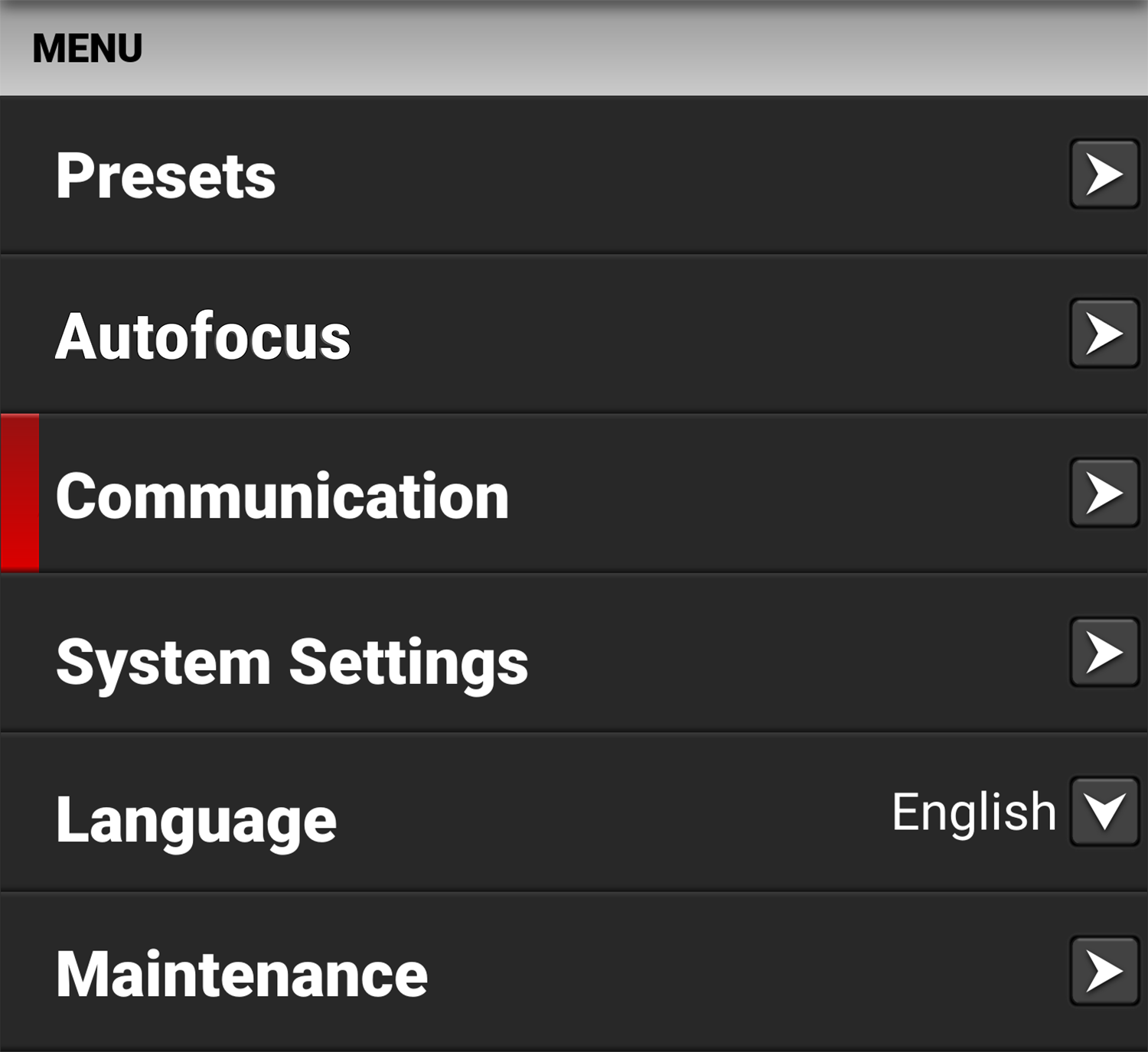
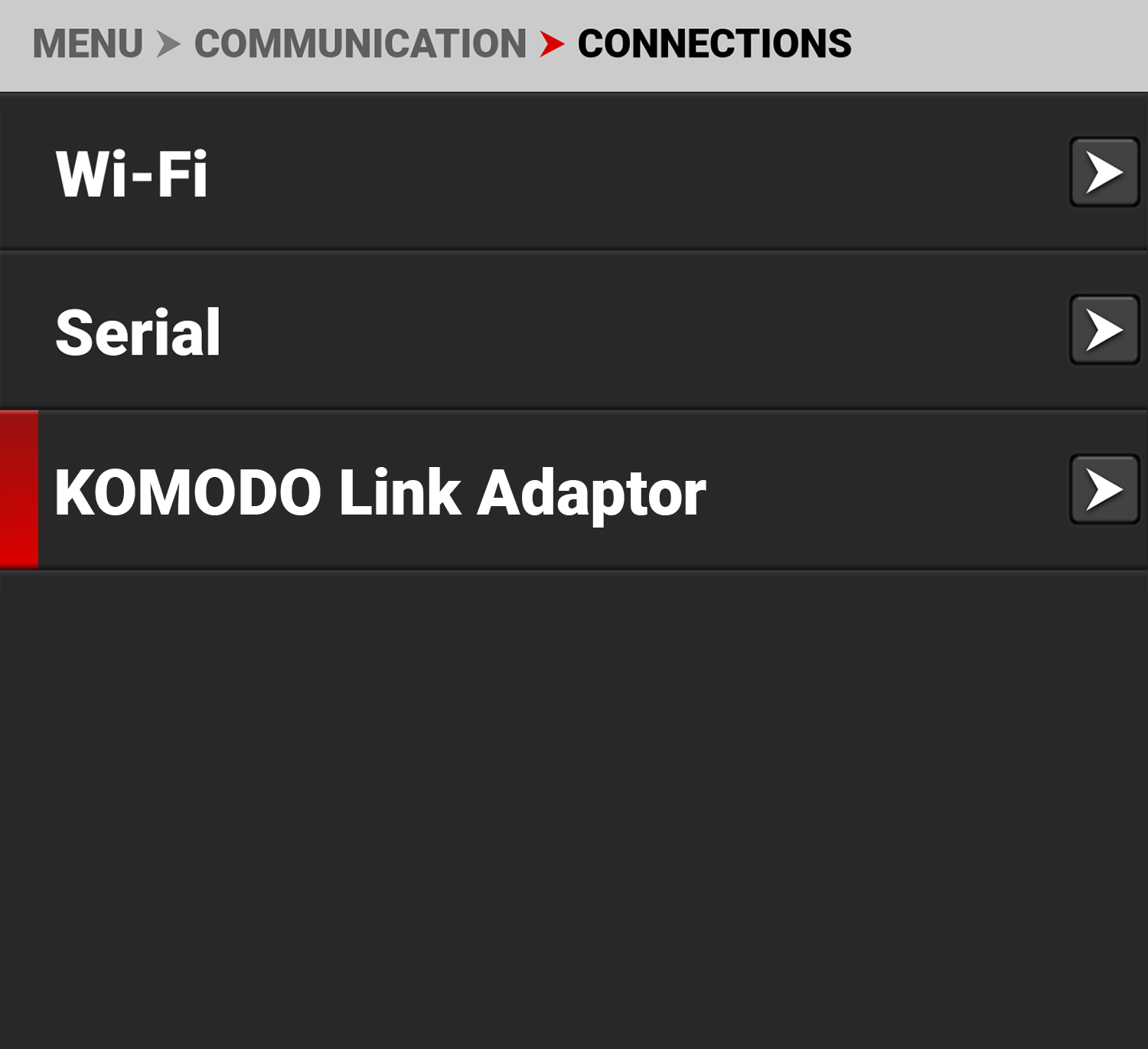
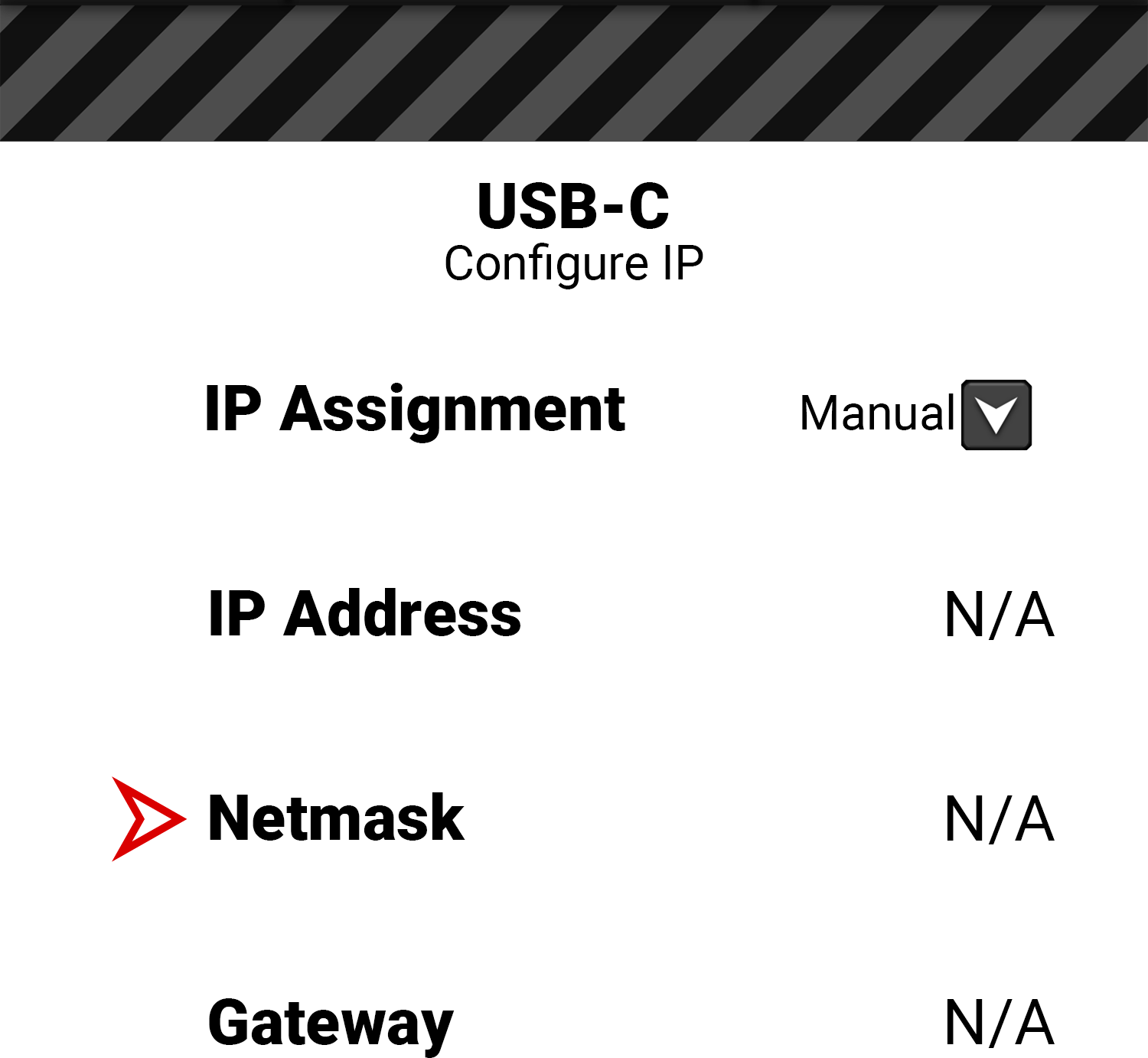
Menu→Communication→Connections→Komodo Link Adaptor - Set IP/Subnet (see IP Addressing for more information):
 |  |  |
For more information please see Red's documentation.
Control Options
The Red Komodo camera features a basic Web UI. You will need to download one of Red's apps for advanced camera control.
- Komodo Browser UI (Red Documentation)
- Red Control (free via Google Play Store and Apple App Store)
- Red Control Pro ($499.99 via Apple App Store, more full featured and with multi-camera control)
Common Issues / Troubleshooting
I have set the IP address but still cannot get a response from the camera
Confirm that you have signal as indicated by the status lights on the bitbox. If you do, it is most likely an IP configuration issue. Double check all settings and confirm that the subnets match.
Ethernet link intermittent or not coming online
Earlier Red firmwares had an issue where USB-C devices would disappear and not reappear until a reboot. If you are experiencing this, you should reboot the camera and update to the latest firmware at your nearest convenience. Alternately, our X-Mode USB-C firmware should prove more reliable in these scenarios. We do not recommend changing the bitbox firmware mode unless you cannot upgrade your camera firmware, as X-Mode breaks compatibility with many other devices.
Cabling
Any good quality USB-C cable which provides at least USB 2.0 data speed will work.